Chapter 7 Supply Chain (Purchasing)
Purchasing is the whole process of buying goods in: build supplier → create order → ship → stock-in → settle. This chapter follows that order.
Entry: left menu Supply Chain (Supply board / Supplier mgmt / Supplier category / Supply order / Supply purchase / Loading calc / Supply settlement).
7.1 Supplier Profiles & Categories
- Supply → Supplier category → New category; inline actions: Manage suppliers / Edit / Delete.
- The "Manage suppliers" dialog assigns suppliers to the category: supports search, Selected only, Select all / Clear; save after checking.
- Supply → Supplier mgmt → New supplier; fields: name, BP code, country, email, phone, payment term, remark.
- Supplier inline actions: Edit / SKU mapping / Delete.
- SKU mapping: maintain the "our SKU code ↔ supplier item no." mapping, so ordering and reconciliation don't need manual code translation.
Supplier category eases filtering & management; pick by supplier when creating a supply order. Payment term affects payable tracking.
Save complete supplier SKU mappings
Each supplier has a separate correspondence table. Main-account isolation, partner visibility and permissions apply to reads and writes. The editor loads all saved mappings with their internal SKU codes, displaying pages of 20, 50 or 100 rows. Additions, renames and removals are staged until Save applies the complete set across every page. Clearing existing mappings requires confirmation. Every filled row needs a unique supplier item number and an active internal SKU; repair or remove invalid SKU references.
If a colleague saves first, a version conflict preserves your draft and blocks replacement. Note the changes you want to keep, reload the latest table, then edit and review again. Read API Keys can query a complete snapshot through HTTP or MCP; replacement requires write access and a matching revision. See the partner item-number guide.
7.2 Create a Supply-chain Order
Supply Chain → Supplier orders → Create supplier order. Select a supplier and enter a remark, then confirm to save a draft and open its editor. Complete the remaining business steps in that order:
| Step | What |
|---|---|
| ① Save the draft | Select the supplier and enter a remark; an empty draft can be completed later |
| ② Edit goods | In Products, select SKUs and enter qty / purchase price / tax; compare historical purchase prices, then save |
| ③ Shipping info | Add container, port, ETA and clearance details in Shipping Info (see 7.5); shipping has its own save operations |
| ④ Review and submit | Check goods and amounts in the editor, then Submit for approval (state → "Pending approval 1") |
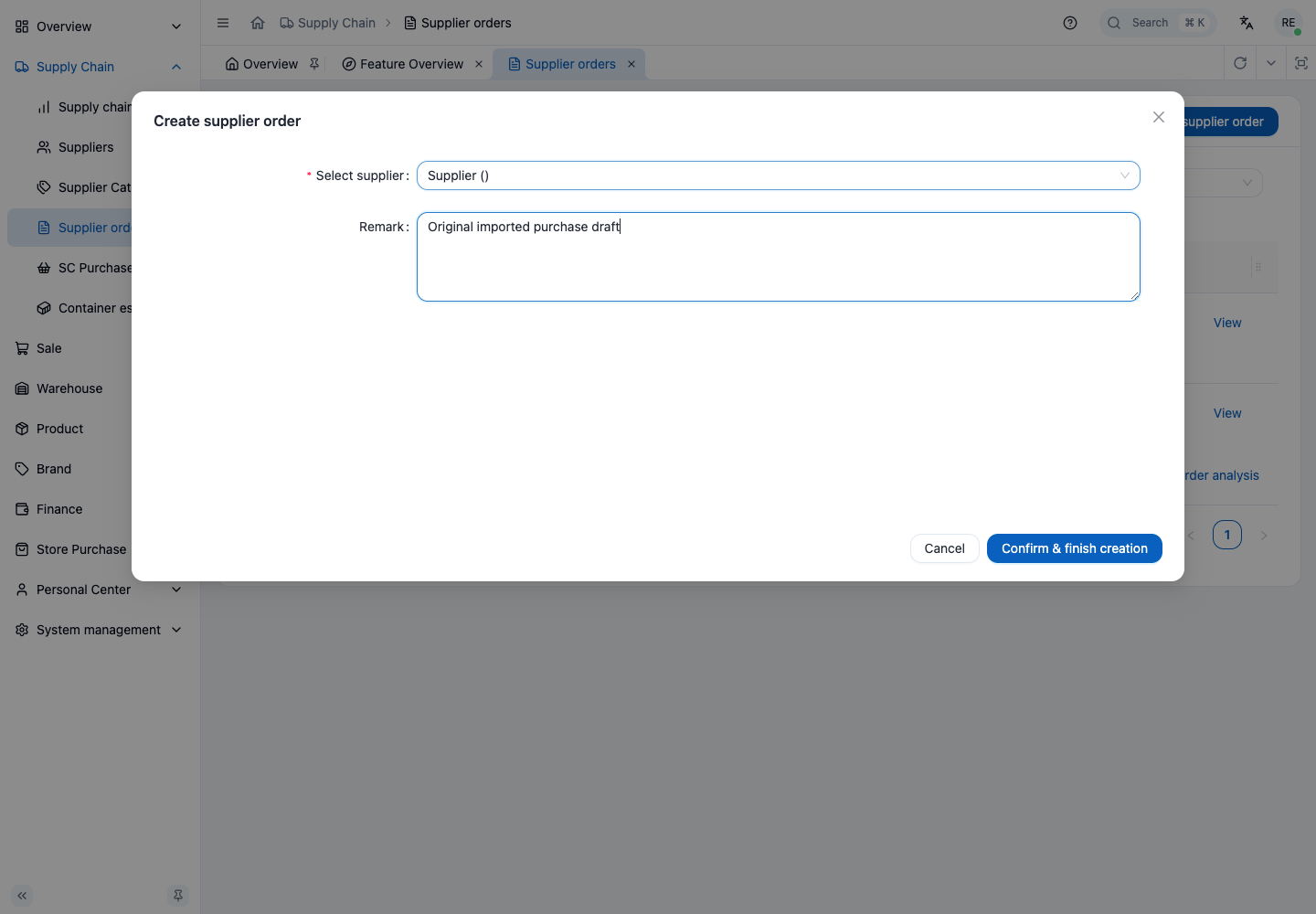
Purchase price entered at step ② is the basis of later cost & settlement (see 2.7 snapshot: price on the order is frozen). "View historical purchase price" compares this SKU's past prices directly — don't price from memory.
Common actions on the order list page:
- Top: Export (all matching saved order summaries in Excel), Create supply order.
The order table reads the requested page; its total counts all matching orders. Changing filters clears rows from the previous scope, and only the latest query can update the table. A failed query needs adjusted filters or a refresh to retry. A nonempty invalid system ID cannot broaden the search; use a positive integer, optionally prefixed with #. Reading another order’s details or an inventory order selector does not expand the displayed page. Export still includes every matching order.
An invalid nonempty system ID filter must be corrected or cleared before export; it cannot silently broaden the file to all orders. The export covers every matching order across pages and keeps the displayed list intact. The Orders sheet includes system IDs, recorded import references, suppliers, status, business times, product amounts, order discounts, payables, separately recorded tax and notes. The Export sheet records filters and the export time. Amounts follow the saved order; freight is accounted for separately and permission-masked values stay *. Native orders without an import mapping have a blank reference; multiple mappings remain on separate lines and long references are text. Check item lines, freight details, actual payments and attachments separately. Changing filters or accounts, or leaving the page, prevents an unfinished old export from downloading. Incomplete reads never produce a partial file.
- Filters: by order no. / SKU / supplier / state / date range, with Query/Reset/Refresh.
- Row actions: Item list (quick view this order's SKU lines) / View / Edit (editable if state < 9) / Settlement (enter settlement page if state 8 or 9) / Change state (dropdown to advance from the current state).
- Expand the row's shipping info: supports Copy / Paste / Save / Delete (when entering multiple containers, copy a row and edit fields is fastest); can view snapshot (goods info at order time, see 2.7); can view order attachments.
The editor accepts reads for the current order. Switching orders, creating an order or closing the editor prevents unfinished earlier reads from bringing the previous order's goods, cargo, payments or receiving records into the new form. A new order does not inherit the previous order's attachment fields. Returning to a cached page in the same account preserves the open order's unsaved form inputs and refreshes payment and receiving records; an unfinished first detail load restarts. After the account session changes, the earlier editor clears and returns to the list.
Save goods and the order together
The order editor's Save commits changed goods and order fields together. An unchanged order sends no save request. Editing only notes or attachment references keeps the existing goods list. The server derives goods, tax and payable amounts; purchase payable is goods plus the order discount, with freight accounted for separately.
Submit for approval saves the current goods and form changes while entering pending approval. Confirming approval also saves current edits and the approval note. While saving, the editor temporarily prevents edits and duplicate submissions. Switching orders, closing the editor or leaving the page prevents earlier results from changing the new form. An already dispatched request may still complete on the server; leaving does not undo it.
Validation or a database failure before commit preserves the saved order and current draft for correction. If saving was acknowledged but the following refresh fails, the changes remain saved. After a timeout or connection loss, reopen the original order and check its actual state before retrying. Cargo field saves, file storage, receiving and payments use their own operations.
Opening an order preserves each line's recorded currency, rate and purchase price. Approved prices do not change when exchange rates refresh. Before approval, review quotes again after explicitly changing their currency or rate.
Order attachments
Invoice, contract and Velox attachments belong to the current order. An upload in progress prevents repeated submission for that attachment field; a successful upload adds the file to that order's form. Click the order's Save button to persist changed attachment references after an upload or removal. File storage and form saving are separate operations.
A deletion confirmation keeps the selected file and order. The form removes its reference only after file deletion succeeds; failure preserves the list for retry. Other files added while deletion is pending remain in the form. Switching orders, closing the editor or leaving the page closes earlier confirmations, and obsolete results cannot alter the new form. A storage request already sent may still complete; leaving the page does not undo it on the server. Reopen the original order and check its actual files and saved list before continuing.
The basic form stacks its fields on phones, and long file names wrap. File names are buttons that work with the keyboard, and deletion controls identify the selected file. The editor and list attachment window request a fresh temporary address each time you open a file. Closing the window, switching orders, leaving the page or changing account sessions prevents an unfinished earlier address from opening a file.
Recover a purchase draft in the dashboard or through an Agent
Before sending a new draft, the dashboard retains a creation reference and its original content for the current account and member. If the response is lost, the supplier-order page keeps that request after a reload and shows its supplier, remark and product count. Click Find created order first. If the order exists, Open created order reads its current details; it does not replace later edits with the original form. The recovery record clears only after the editor successfully opens the matching order.
Only a confirmed missing result permits Continue original creation, using the same reference and original content. A failed lookup does not permit a fresh duplicate request. If the saved order was deleted, confirm dismissal of the local recovery record before starting a different draft. If browser storage cannot retain the request, creation stops; restore storage access and reload before continuing.
A connected Agent can use the same purchase creation contract: save a fixed reference and the complete request, then query the reference with read access after an uncertain response. Repeating the same original request returns the same order and goods; changed content cannot reuse the reference, and a deleted order cannot be recreated with it.
This recovers draft creation. Shipping, receiving, payments, product updates and migration checkpoints remain separate operations; historical imports use their own source references. See the Agent setup and downloadable Skill for the request sequence and live capability check.
7.3 Submit & Process Approval
- Submit draft → state becomes Pending approval (1).
- Approver (System Admin → Pending approval) approves or rejects.
- On approval, state Approved (2); creator "confirms order" → state Ordered (3), formally sent to supplier.
New orders start as drafts and may remain drafts without products. The order editor saves current goods, form changes and submission together; shipping information is saved separately. Both approval and rejection require the owner or a member with purchase approval permission (see 4.5).
After approval, the supplier, SKU identity, purchase price and order price fields are locked. The order cannot be reopened as a draft to change prices. Quantities remain editable before receiving begins. Remove an approved product from its cargo before removing it from the order; deleting a draft product also removes its cargo links. The first physical receipt locks quantities and the product list. Remarks and attachments can still be added. Orders with receipts, invoices, tax invoices or cost analysis cannot be deleted.
7.4 Order Fulfillment State Progression
After Ordered, states advance by physical progress. The diagram below is the supply-chain order's full 10-state machine — from draft to cleared:
st=>start: 0 Applied
s1=>operation: 1 Pending approval
ap=>condition: Approved?
s2=>operation: 2 Approved
s3=>operation: 3 Ordered
s4=>operation: 4 Shipped
s5=>operation: 5 Arrived port
s6=>operation: 6 Cleared customs
s7=>operation: 7 In transit
s8=>inputoutput: 8 Stocked in
e=>end: 9 Settled
st->s1->ap
ap(yes)->s2->s3->s4->s5->s6->s7->s8->e
ap(no)->st
States 0/1/2 mean draft, pending approval and approved. Confirm the order after approval, then advance its shipping stages. Arrived orders can advance to transit. Complete physical receiving sets Warehoused (8), and the cost settlement operation sets Analyzed (9). Ordinary state editing cannot set either state directly.
Advance shipping stages with Change state on the order list. Node times in shipping info track arrivals and transport duration:
| State | Shipping field |
|---|---|
| Shipped | ship_time |
| Arrived port | port_arrival_time |
| Cleared customs | customs_clearance_time |
| Transit | transit_time |
These node times (sailing, arrival, clearance, to-warehouse) are maintained in shipping info; see 7.5.
7.5 Maintain Shipping Info
One supply-chain order can link multiple shipping infos (one purchase may ship in several containers), each with its own logistics, cost, and line allocation.
- Enter supply order → Shipping info → New.
- Fill logistics nodes:
| Field | Meaning |
|---|---|
| Container (container) | Container no., unique tracking id |
| Size (size) | Box type (e.g. 20'/40'), for loading calc |
| Cases (cases) | Number of cases in this container |
| Shipping line (shipping_line_name) | Carrier |
| POD (pod) | Discharge port |
| ETA POD (eta_pod) | ETA at destination port |
| ETA Toronto (eta_toronto) | Arrival at inland warehouse |
| Pickup no. (pickup_number) | For clearance/container pickup |
| Customs status (customs_status) | Clearance progress |
| Warehouse no. (warehouse_number) | Which warehouse it finally enters |
- Allocate this container's goods (snapshot of order lines) under it.
- Fill cost: freight (freight_cost), drayage/forwarding (delivery_cost), etc.
Saving a product allocation moves the selected purchase lines to the target cargo and removes those lines from other cargos in one transaction. Unselected lines stay in place. The server checks the complete allocation and purchase-line snapshot from when the window opened. A failed save keeps the old allocation and your selection. If the snapshot changed, close the allocation window and reopen the order to review the latest assignments before saving again. Allocation does not replay receiving or change quantities, freight charges or payments; costed orders cannot be reallocated.
Cargo fields save when you leave an edited field. Saves for the same cargo run in order; a response preserves newer edits still in the form. Only changed fields are submitted. Clear a nullable date, text or attachment reference to remove its old value; clearing a foreign currency removes its amount and rate but keeps the CAD cost. Costed charges and exchange rates remain locked, including attempts to clear them.
A failed save or paste keeps the edited cargo draft visible so you can correct it and leave the field again to retry. Pasting copies cargo metadata and costs, so review copied charges to avoid counting them twice. Changing orders, leaving the editor or switching accounts prevents an earlier cargo request from updating the new page. Clearing a logistics date on a costed order updates its timeline without recalculating inventory costs.
With multiple containers, each gets its own shipping info, line allocation, and cost — at settlement each container's cost is allocated independently.
7.6 Loading Calculation
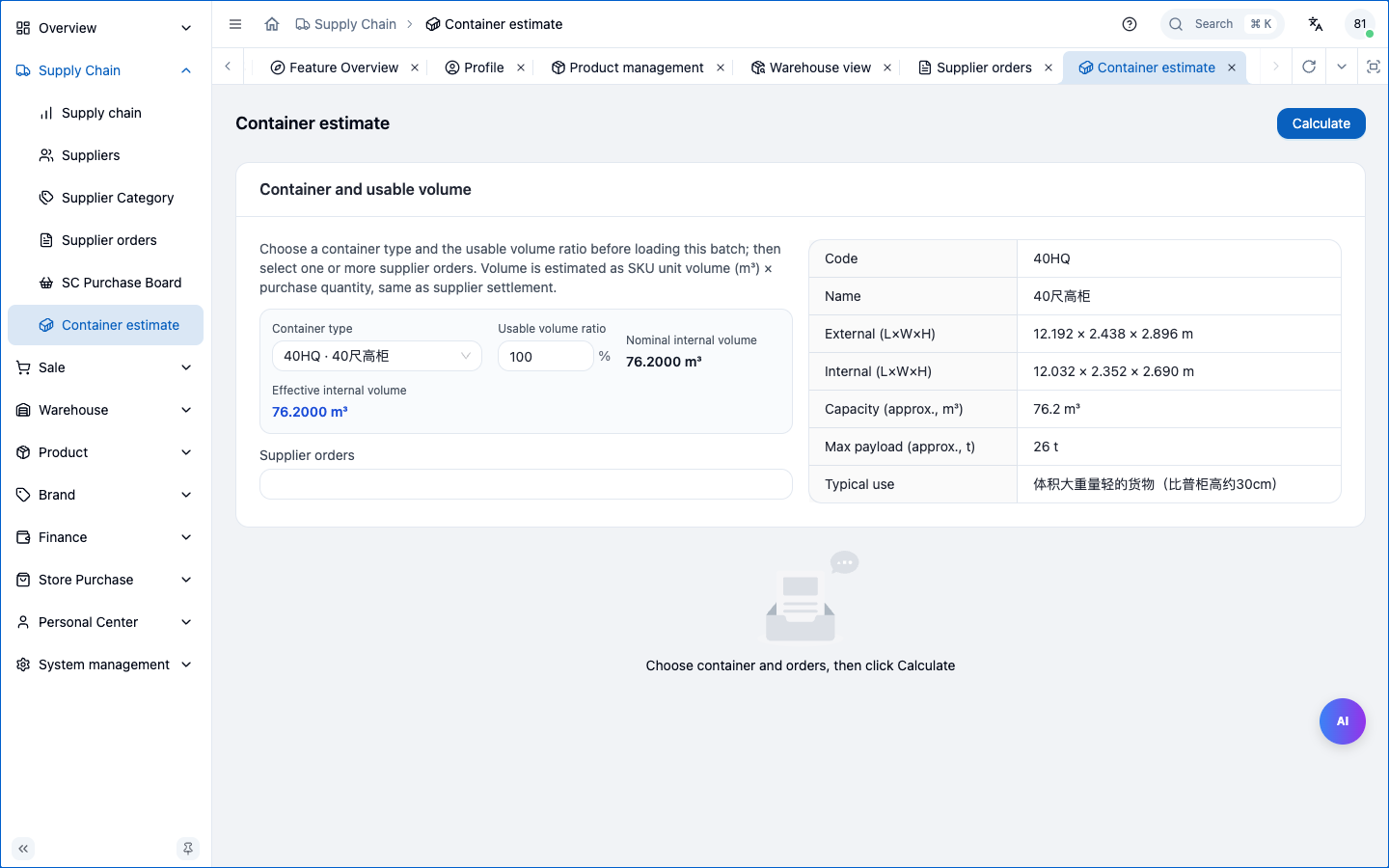
- Supply → Loading calc.
- In the param card pick box type (container size) & available volume; in the product-row card add the SKUs & qty to load.
- Click Calculate; system computes loading rate by each SKU's volume (m³); the summary card shows how much fits and how, and can link to the order sheet.
- To correct an individual SKU's volume, use volume setting / settlement SKU volume edit to override temporarily (doesn't change the product master).
Volume must be accurate for this to work (see 6.3). Loading calc helps plan container loading before shipping.
7.7 Supply-chain & Purchase Dashboards
- Supply board: view in-transit orders, stocked-in quantities, settlement and stage lead times; metric cards link to the corresponding pages.
- Purchase board: browse the brand wall, select products and enter quantities in each SKU’s inventory unit. Select a supplier for every line, then open Purchase Draft to review the supplier groups. The browser saves this list separately for the current account and member.
- Choose Review supplier drafts, inspect the groups and confirm. Each supplier gets a separate draft with its product lines saved together. Open the created order to review prices and complete approval before shipping, receiving or payment. An unpriced draft does not confirm a purchase cost.
- Successfully created groups leave the list; failed groups remain. If a creation result is unknown, further groups stop. Keep the original request and use Find created order after reloading. Open the matched draft; only a confirmed missing result permits Continue original creation. Do not clear browser storage or make a new request to bypass an uncertain result.
Creating purchase drafts does not receive goods or record payments. Old unowned browser lists are not automatically attached to a signed-in account. Review your original list if you used an older version.
For purchase plans from a spreadsheet or an old system, hand the original data to your agent. It can map unfinished purchasing intentions into native drafts after checking the current MCP guide. Historical purchase replay is a different migration path that can change inventory; review the cutoff and source records first.
7.8 Stock-in on Arrival (links to Warehouse)
When goods reach the warehouse, in Warehouse → In-Out → Purchase stock-in, pick this supply order, enter qty, shelf, expiry.
- Can be partial: stock in batches; only when fully in does the order reach "Stocked in (8)".
- After stock-in, the SKU gets physical stock in the warehouse (five dims: SKU×warehouse×expiry×order×shelf).
Detailed operation in Chapter 10.
7.9 Supply Settlement
- Order list → rows with state 8/9 click Settlement to enter the settlement page.
- Top of the settlement page is a key node timeline (ordered→shipped→arrived→cleared→stocked in), showing the whole fulfillment at a glance.
- System allocates freight (ocean + drayage, etc.) to cost by each shipping info and each SKU's volume ratio; if an individual SKU's volume is off, you can edit the SKU volume override on the settlement page (only affects this allocation, doesn't change product master).
- Can view snapshot to check goods & price at order time.
- Assign every purchase line to exactly one shipping record. If a line will travel in multiple containers, split it into separate purchase lines before approval. Empty cargo, duplicate assignments and missing volumes block confirmation.
- The system combines each SKU's purchase amounts, order discount and freight allocated across containers, then divides by the original purchased quantity to obtain weighted unit costs. Sales and transfers do not change the allocation denominator. The order reaches Analyzed (9).
Purchase payable is goods amount plus order discount. Freight is recorded separately and included in inventory cost; tax is recorded separately. Approved quantity changes update goods and payable amounts in the same transaction.
The detail Finance tab uses that same payable basis and reconciles the remaining amount with actual payments and money received back. Shipping is listed separately. Total cost before tax on the Cost tab includes shipping; it is not the goods payable to the supplier.
Confirmation saves the volumes and costs used, retaining six decimal places for unit purchase and freight costs. After confirmation, shipping costs, exchange-rate records and cargo assignments are frozen, and shipping records cannot be added or removed. Logistics dates, container labels and attachments can still be corrected. Retrying confirmation does not duplicate analysis. Older analyzed orders retain their recorded costs rather than being recalculated from today's SKU volumes.
Settlement = confirming purchase cost (incl. allocated freight). This must complete before sale settlement (sale settlement depends on the upstream supply order being settled, see 8.5 / 11.7).
7.10 FAQ
| Issue | Handling |
|---|---|
| Order entered wrong | If state is Applied/Pending/Approved and not fulfilled, edit or void; after shipped, usually no edit — use return / supplementary order |
| Want to void | Void in order action (soft delete, recoverable); only unfulfilled orders can be voided |
| Partial arrival | Don't edit the order; stock in batches; only fully in reaches "Stocked in" |
| Freight inaccurate | First confirm each SKU's volume and each container's allocation are correct |
Chapter Summary
- Purchase flow: build supplier → create order (purchase price) → approve → confirm order → ship → stock-in → settle.
- Shipping info can be multi-container: each container independent logistics, cost, allocation.
- Fulfillment states (shipped/arrived/cleared/transit) advance by shipping node times.
- Settlement allocates freight to cost by volume, and must precede sale settlement.
- Unfulfilled orders editable/voidable; partial arrival via batch stock-in.
Next: Sales.