Chapter 8 Sales
Sales is the whole process of selling goods out: build merchant → create order (freeze stock) → approve → stock-out → settle → (optional) return.
Entry: left menu Sale (Sale board / Sale order mgmt / Sale settlement / Merchant mgmt / Merchant category / Return order view).
8.1 Merchant Profiles & Categories
- Sale → Merchant category → New merchant category; row actions: Manage merchants (popup checkbox assignment, search / select all / clear), edit, delete.
- Sale → Merchant mgmt → New merchant; fill the name, contact and billing details.
- Row actions on merchant list:
- Edit: change base info; can fill billing info from contact info (one-click copy, less typing).
- Address mgmt: maintain multiple delivery addresses for this merchant, including each address's region (tax zone), with add / edit / delete; merchants pick from these when placing orders in the portal.
- SKU mapping: maintain "our SKU ↔ merchant item no." correspondence, making reconciliation / shipping docs match up.
For newly priced taxable lines, the order's selected delivery address region (tax zone) supplies the tax rate (see 2.11). Check the address and its region before pricing the order.
The merchant list queries complete sales orders and receipts for merchants on the current page, showing outstanding receivables and overcollected credit separately. Contact-cache balances are not used. It includes visible, placed through cost-confirmed sales orders (statuses 3–6), excluding drafts and unconfirmed orders. Positive per-order balances add to outstanding receivables; credit does not cancel another order’s debt. Recorded sales totals include tax. Effective signed receipts and reversals count; future-dated records do not reduce today’s balance. Use Refresh balances to query again; the page shows the Toronto business cutoff. Missing financial facts or failed queries show —, hidden amounts show *, and confirmed zero shows $0.00. Credit limits are configured merchant information, not an automatic credit approval.
Address access and complete SKU mappings
Merchant addresses and item-code mappings follow main-account isolation and the subaccount’s permitted merchant scope. Reads, creates, edits and deletes check the parent merchant. Hidden merchants’ addresses are excluded. Batch address queries explicitly return an empty list for a visible merchant with no addresses; an omitted merchant or failed query remains unknown and can be queried again by import preview.
The SKU editor loads the complete saved mapping set and displays existing internal SKU codes, with pages of 20, 50 or 100 rows. Code changes, removals and additions are staged until Save, which includes every page. Each filled row needs a partner code and an active internal SKU; partner codes are unique within that merchant, ignoring case. Repair or remove historical rows whose internal SKU is missing or inactive. Clearing existing mappings requires confirmation.
Saving checks the version originally loaded. A concurrent edit leaves your draft visible and reports a conflict. Note the changes you want to keep, reload the latest table, then review and save again. Switching merchants discards earlier request results for the old merchant. See the partner item-number guide.
8.2 Create Sale Order
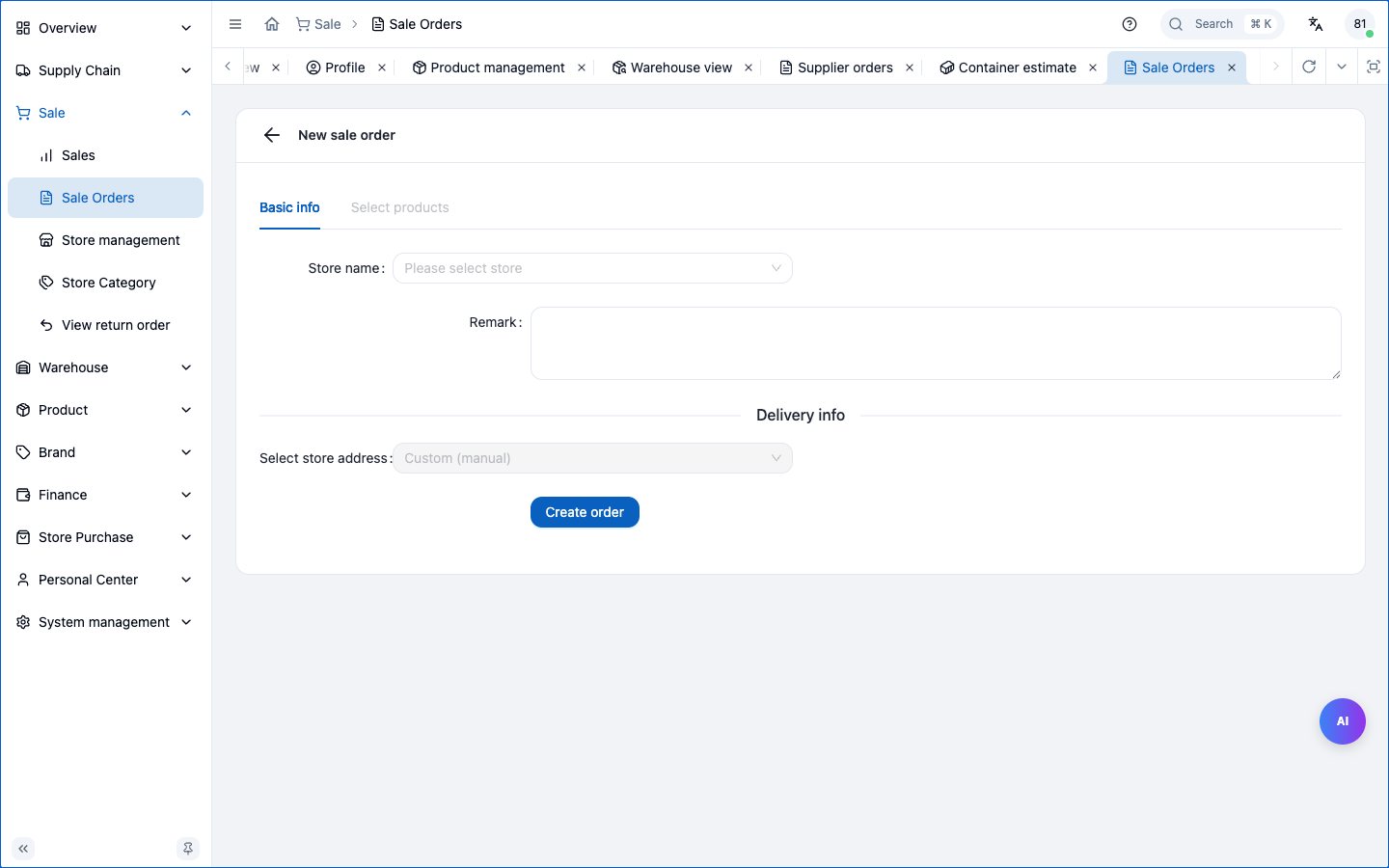
- Sale → Sale order mgmt → Create order (Basic information / Products / Approval tabs).
- Pick merchant and delivery address (can add new address on the fly if needed), add SKU, fill sale / discount price per line.
- System computes line tax using the selected delivery address's region rate and the SKU's taxable flag.
- Save as draft (state "Applied 0").
Saving selected stock reserves it: after warehouse stock batches are selected, a successful product save creates the order’s reservation and reduces available stock (see 2.6). Approval and order confirmation do not reserve the same quantity twice. Physical stock changes at warehouse dispatch. Sale/discount supports per-merchant settings (different merchants different prices), maintained per merchant in the price/discount drawer of product detail (see 6.4). Pricing rule on order: the system prices by the merchant's customer level — a merchant sees all price tiers at or below its own level, and the lowest price among pooled dedicated + general prices is used (see 6.4 "Customer level & price rule").
Common operations on the order list page:
- Top bar: Export (all matching saved order summaries in Excel), Create order; filter / reset / refresh after search.
The order table reads the requested page; its total counts all matching orders. Changing filters clears rows from the previous scope, and only the latest query can update the table. A failed query needs adjusted filters or a refresh to retry. A nonempty invalid system ID cannot broaden the search; use a positive integer, optionally prefixed with #. Reading another order’s details or an inventory order selector does not expand the displayed page. Export still includes every matching order.
An invalid nonempty system ID filter must be corrected or cleared before export; it cannot silently broaden the file to all orders. Export covers all matching pages. It retains system IDs, recorded import references, customers, status, business times, product amounts, discounts, saved receivables, separately recorded tax and notes; the Export sheet records the filters. Amounts are not recalculated, masked values stay *, and zero remains numeric. Native orders without an import mapping have a blank reference; long references are text. Check item lines, actual receipts and attachments separately. Changing filters or accounts, leaving the page, a rejected request or an incomplete response prevents an unfinished old job from producing a partial file. Exported rows do not replace the displayed list.
- Row actions: Product list / View / Edit / Change status / Approve (when state = 1) / Save products / View stock-out details.
- Order detail bottom: Print (print sale slip), Submit for approval, Approve, Save; can Add receipt record (quick payment entry; full AR management in 11.3).
Default prices and whole-line discounts
Product selection and merchant ordering compare the selected buyer’s dedicated and general quotes at or below that buyer’s level, then use the lowest eligible price. Another buyer’s dedicated quote is excluded. Missing quotes stay unknown; a free item requires an explicit zero quote or manual price. Authorized price editors can choose an eligible quote or enter an agreed unit price. Discounts are two-decimal whole-line amounts, capped at quantity times unit price. Tax uses the unrounded net line amount and the delivery address tax rate, rounded once to two decimals with decimal half-up rounding.
Choosing prices and stock batches
The price and discount window reads the current SKU's quotes. If that read fails, choose Retry before selecting a price. Confirmation requires an eligible quote; a missing or cleared selection cannot replace an agreed price with zero. An explicit zero quote remains valid. Closing the window, changing orders or removing its product line discards earlier choices. Approval or loss of price-edit authority also prevents confirmation.
Stock choices stay attached to the product line being edited. Removing that line or clearing its stock selection discards pending choices, so a delayed response cannot select it again. Choosing a batch does not reserve stock. The reservation is created only by a successful product save, which checks stock on the server.
Saving products and recovering a draft
In order details, Save products commits the complete product list, order amounts and stock reservations together. Insufficient stock saves none of those changes; your draft stays available to adjust. Clearing products also releases the order’s reservations and removes those lines from draft delivery assignments. Submitting for approval can happen in the same save; an empty list cannot be submitted.
A version check detects newer product edits. On a conflict, the editor keeps your draft and blocks another obsolete save. Copy any changes you need before choosing Reload and replace draft, then review the latest order. Unchanged approved lines keep their recorded price, tax and product text; quantity edits use the recorded original effective tax rate. Once actual dispatch starts, even a partially dispatched order cannot change its product list, quantities or stock selections.
Confirming a creation result
Before creating a sales order, the editor retains the original request. If the connection drops or the result is uncertain, it keeps that request and blocks a second creation. Choose Find created order, then open the returned order. After a page reload, reopening the create screen still offers recovery. Retained requests are isolated by signed-in account.
If no accessible order is found, explicitly choose Continue original creation. The original request is reused to avoid a second order or stock reservation. A failed lookup or a deleted original order does not authorize recreating it. Review the current products and status before continuing; recovery does not approve, dispatch or record payment. The parent order is created before products are saved, so a failed product save leaves an identifiable order in the list.
Original tax rates and legacy orders
Newly priced lines record the effective tax rate together with the tax amount, including an explicit zero. After approval, quantity changes use that recorded rate even if the current product tax flag or region settings change. Tax is rounded once to two decimals; do not infer an exact original rate from a rounded tax amount.
A legacy line without a recorded rate retains its saved tax. Quantity changes require explicit confirmation first. In an approved order’s detail, Confirm original tax rates is available to staff with sales order write and amount write authority before any actual dispatch. Enter the original rate and supporting evidence from the original documents. The rate must reproduce the saved tax; this action does not rewrite the original amounts. Reload the latest order after confirmation before making further changes. Unknown tax cannot be confirmed, and a recorded rate cannot be reassigned.
If the result is uncertain or the order version changed, copy any evidence to retain, then reload and compare. Do not immediately replay the request. See the worked tax snapshot example.
8.3 Submit & Process Approval
- Submit draft → state Pending approval (1).
- Approver approves or rejects.
- On approval, Approved (2); creator "confirms order" → state Ordered (3), selected stock was reserved when products were saved.
Submitting, approving and confirming require a nonempty, valid product list. Selected stock is checked again at each step. An approved order cannot be returned to a draft through Change status. Confirmation and Delivered actions load the complete current order for review; if a teammate changes that version, reload and compare before trying again.
Sales approval actions in the approval center open the complete order first. Approval and pending-line edits check the product version you reviewed; a newer product, state or address change stops a stale approval. Price and whole-line discount edits need separate sales price authority. An approver without that authority can change quantity or remove a line without submitting hidden amounts. Changed pending lines recalculate tax for the order’s delivery region; untouched lines keep their recorded tax. Amounts, stock reservations, draft delivery links and the audit log commit together. Actual dispatch prevents further product edits.
After a version conflict, keep or copy your draft and reload the current order to compare before submitting again. If a save times out or reports an uncertain result, read the order before retrying. A line without a selected warehouse stock batch may currently be approved as a preorder; that approval does not reserve inventory or promise shipment. Dispatch still requires a valid stock assignment and stock checks.
8.4 Stock-out & Shipping, Delivery Status
- Warehouse → In-Out → Sale stock-out; pick this sale order; ship from the assigned shelf/batch.
- Stock-out done → sale order state Stocked out (4); physical stock drops, occupation released.
- After delivery to merchant, maintain delivery status to Delivered (5).
Detailed stock-out in Chapter 10. Stock-out must be based on a confirmed order and is constrained by available stock.
The sale order's full 7-state machine:
st=>start: 0 Applied
s1=>operation: 1 Pending approval
ap=>condition: Approved?
s2=>operation: 2 Approved
s3=>inputoutput: 3 Ordered (confirmation)
s4=>operation: 4 Stocked out
s5=>operation: 5 Delivered
e=>end: 6 Settled
st->s1->ap
ap(yes)->s2->s3->s4->s5->e
ap(no)->st
Multiple deliveries, verified destinations and product assignments
Use the order detail's Delivery information tab to add separate delivery records. Each has its own reference, date, address, contact, company and product selection. An address must be active and belong to this order's merchant; this also applies to order creation, portal checkout, imports and snapshot building. Staff access follows their permitted merchants. Historical invalid address references remain recorded, but the API does not embed another merchant's address or a deleted address.
Editing reloads the current order and merchant addresses and preserves the saved address selection. Unknown or failed queries block saving and offer Reload. A saved inactive or wrong-merchant address requires selecting another address or explicitly clearing it. Closing or switching the editor discards earlier responses.
Assign products selects whole sales-plan or actual outbound snapshot lines belonging to this order. Saving the target selection moves those lines from other deliveries in one server transaction. Failed saves preserve all assignments and keep the selection open. Assignment does not split line quantities or move physical inventory. Record warehouse stock-out separately. Delivery counts are line counts, not dispatched quantities.
For API edits, omitted nullable fields preserve existing values; explicit null clears them. An empty product list clears that delivery's assignments. Clearing or changing delivery metadata does not recompute frozen order tax or prices. Failed detail pastes restore the original row. Default read API Keys can inspect delivery records over HTTP / MCP; writing requires write scope and an authorized task. See the multiple-delivery guide.
8.5 Sale Settlement
- Sale → Sale settlement → pick this sale order.
- System checks: order must be stocked out (≥4) and its linked supply-chain order Settled (9).
- On confirm, register receipt; order state becomes Settled (6), and a sales analysis record is generated (profit, turnover, annualized return).
⚠️ Why must the supply-chain order settle first? Sale profit = revenue − cost (incl. allocated freight). If the upstream supply-chain order isn't settled, cost is uncertain, profit/turnover can't be computed accurately. So the system enforces: supply settlement first, then sale settlement (see 11.7 settlement panorama).
8.6 Sales Return
- Warehouse → Return → New return order: choose a store, Add products, and enter quantities, expiry and shelves. For linked sales, select the actual dispatch source before receiving. One return can include multiple sales orders for that store; manual returns without a historical order are also supported. Add images for evidence, Save draft, then Confirm return stock-in.
- The allowance for a linked order and SKU is actually dispatched quantity minus prior returns, shared across return documents. Once all items are received, the state moves Returning 0 → Stocked back 1; partial receipts remain Returning. Received items and their sources cannot be rebuilt or reassigned.
- Sale → Return order view: search or filter returns and View details. Review received sources and enter refund prices and confirmed quantities. Save a price draft, then Confirm return price after saving succeeds → Price confirmed 2.
- Finance → Return finance ops → Create refund record and Confirm refund (state Refunded 3, see 11.4).
Return is a 4-state flow (see 2.8):
st=>start: 0 Returning
s1=>operation: 1 Stocked back (warehouse)
s2=>operation: 2 Price confirmed (sale side)
e=>end: 3 Refunded (finance)
st->s1->s2->e
8.7 Sales Dashboard
- Sale → Sale board.
- View sales, stocked out, settled, returns, top merchants.
Board is read-only; act in orders / returns / settlement.
Chapter Summary
- Sale flow: build merchant → create order (sale/discount, auto tax; selected stock reserved on save) → approve → confirm → stock-out → confirm costs → (optional) return.
- Confirming order freezes available stock; sale/discount can differ per merchant.
- Tax by merchant region rate + SKU has_tax.
- Sale settlement prerequisites: order stocked out + linked supply order settled; after settlement generates profit/turnover/annualized.
- Return 4 states: Returning → Stocked back → Price confirmed → Refunded.
Next: Merchant Purchase Portal (for downstream merchants).