Chapter 6 Product Management
Product is the foundation of the system. No SKU and price, no purchase or sale order. This chapter is how to list goods into the system.
Entry: left menu Product (Category mgmt / Product mgmt / Product detail) and Brand (Brand board / Brand mgmt / Brand category mgmt).
The build order for product master data — category and brand first, then SKU, then prices, before any order can be placed:
st=>start: Product master data
a=>operation: 1. Category mgmt (tree / drag-sort)
b=>operation: 2. Brand mgmt (brand category -> brand -> logo -> annual target)
c=>operation: 3. Create SKU (code / spec / volume / tax / barcode)
d=>inputoutput: 4. Maintain prices (purchase / sale / discount)
e=>end: Purchase / Sale / Merchant browse
st->a->b->c->d->e
6.1 Maintain Product Categories
- Product → Category mgmt: the page is a category tree with Expand all / Collapse all.
- Top New category; tree-node inline actions: Add subcategory / Edit / Delete.
- Category form fields: name, English name, code, parent category, sort order.
- Support drag to reorder and re-level categories.
Category is one of the SKU's belonging dimensions; have a category before creating an SKU. Before deleting a category, confirm no product under it is in use.
6.2 Maintain Brands, Brand Categories, Annual Target
- Brand → Brand category mgmt: first build sub-categories under a brand (brand categories); support add/edit/delete.
- Brand → Brand mgmt → New brand: two steps — first fill brand name, then upload brand logo.
- Brand cards support inline Edit / Delete; search by name.
- Editing a brand lets you maintain the annual purchase target sub-table: add/edit/delete target rows, each row fills annual target and Q1–Q4 quarterly targets.
- Brand board auto-summarizes each brand's annual sales, return rate, profit, quarterly completion.
Brand annual target feeds the brand board's completion-rate analysis; set it early in the year.
6.3 Create Product (SKU) & Spec
Note: this system manages product at the SKU (spec) level as the smallest unit — there is no separate SPU parent. Creating a product = creating an SKU.
Common actions on the product list page:
- Top Add product; search box by product name.
- Filters: category (multi-select), listed/unlisted status, country code, custom category 1/2/3; click Query to filter.
- Row actions: Edit / Price / Discount / Delete (Price and Discount open drawers, see 6.4).
Create/edit product:
- Product → Product mgmt → Add product (drawer form).
- Fill fields (key fields from the data model):
| Field | Meaning | Note |
|---|---|---|
| SKU code (sku_code) | Business-unique code; join key for stock/order/finance | Don't change after use |
| Product code (code) | Internal unique code | Auto/manual, unique |
| Brand (brand_id) | Belonging brand | Build brand first |
| Spec name (spec_name) | Product name; zh/trad/en | Fill each language |
| Country code (country_code) | Country of origin | Required for cross-border |
| Customs code (custom_code) | Customs code | Required for cross-border |
| Custom category 1/2/3 | Customs grouping | As needed |
| UPC / barcode (upc, barcodes) | For scanning | Multiple allowed |
| Unit / UOM | Sell unit | — |
| Unit count (unit_count) | Min sellable units per spec | Default 1 |
| Volume (size_value, m³) | Per-unit volume, m³ | Required & accurate; freight & loading depend on it |
| L/W/H (cm) | The volume calculator in the form; fill dimensions to auto-compute volume | Fill one precisely |
| Has tax (has_tax) | Whether taxed by merchant tax zone | 0 no / 1 yes |
| Default supplier (default_supplier_id) | Suggested supplier when purchasing | Optional |
| Status (status) | 1 listed / 0 unlisted | List to be sellable |
- Save and list (status = 1); only then does the product appear in browse/order options.
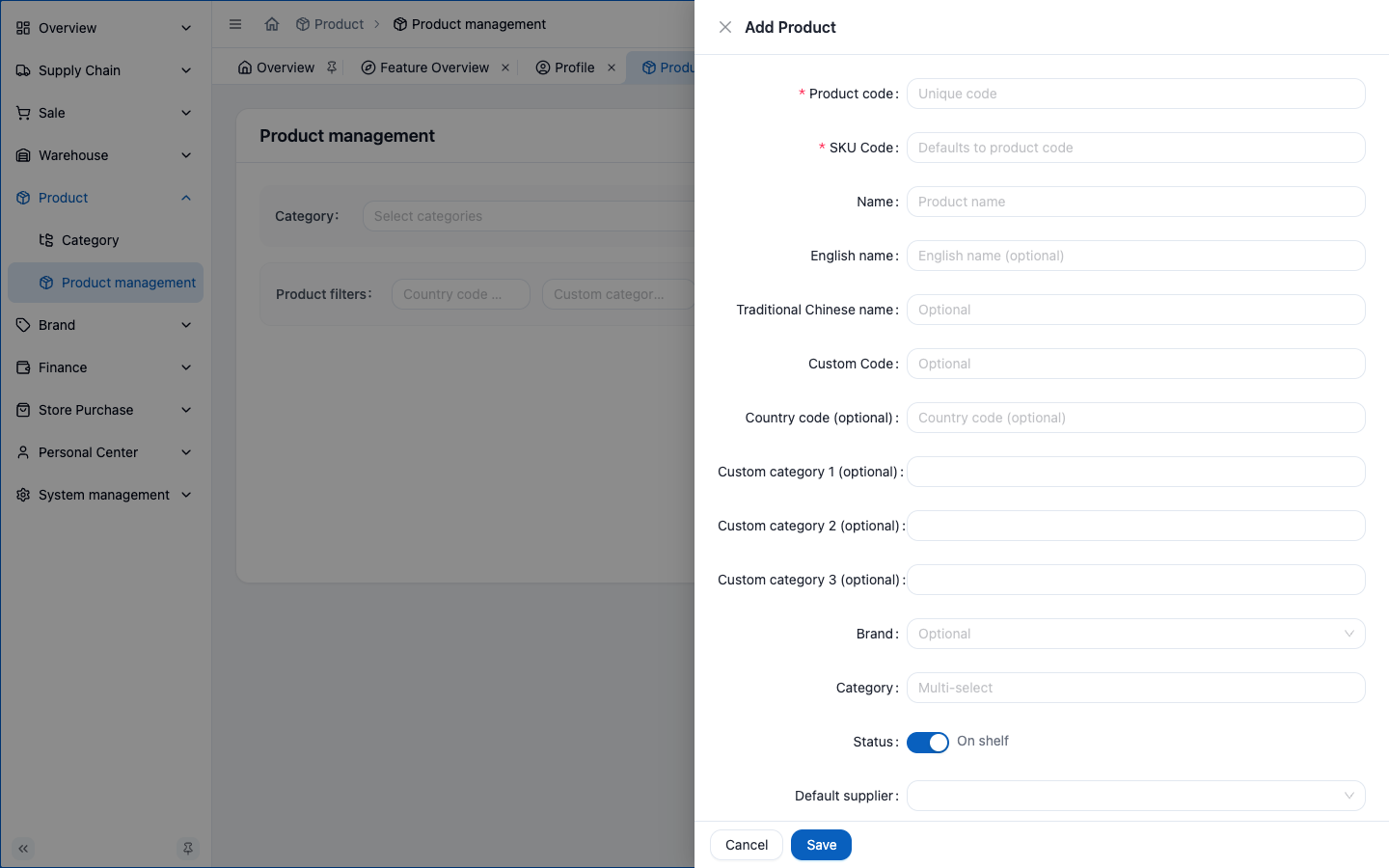
⚠️ Volume is the easiest to get wrong with the worst consequences. Freight is allocated by each SKU's volume ratio, and loading is computed by volume. Wrong volume → distorted freight allocation and wrong loading. Always fill the real per-unit volume (m³).
6.4 Maintain Prices
Three price layers, maintained in different places:
| Price | Where | Note |
|---|---|---|
| Purchase price | Entered when creating supply-chain order | Follows order; settlement uses it as cost |
| Sale price | Product list row → Price (drawer) | Standard price, can tier by customer level/merchant |
| Discount price | Product list row → Discount (drawer) | Promo price, by level/merchant |
Price decision flow — check cost before setting the sale price, then decide whether to tier by customer:
st=>start: Set sale price
a=>operation: Open "Price" drawer
b=>inputoutput: View purchase cost (batch / avg cost)
c=>condition: Tier by customer level/merchant?
d1=>operation: Set general price
d2=>operation: Set per level/merchant
e=>operation: Optional: set discount in Discount drawer
f=>end: Auto-applied at merchant checkout
st->a->b->c
c(yes)->d2->e->f
c(no)->d1->e
Price drawer (product list row → "Price"):
- Add sale price: fill price, optional customer level, optional merchant (blank = general price). Same SKU can have different prices per merchant/level.
- Inline Edit / Delete existing prices.
- View purchase cost: open nested drawer listing warehouse / created time / expiry / purchase price / stock per batch, with an average cost summary at the bottom — check cost before setting price.
Discount drawer (product list row → "Discount"):
- Add discount: pick customer level/merchant, set direct discount or custom amount, add note.
- Inline Edit / Delete existing discounts.
Customer level & price rule:
- Customer level: every merchant has a customer level (default level 1, the lowest). Adjust it in the merchant profile (e.g. level 2, level 3… the higher the level, the more benefit).
- Price tiers: both sale price and discount carry a level (default level 1). The same SKU can have different prices per merchant and per level (a specific merchant = dedicated price; no merchant = general price, visible to all merchants).
- Pricing rule (applied automatically when a merchant orders):
- A merchant can see all price tiers at or below its own level (e.g. a level-2 merchant sees level 1 and level 2 prices; a level-1 merchant sees only level 1).
- Dedicated and general prices are compared together: when pricing, the merchant's dedicated price (if any) and the general price (no merchant) are pooled for comparison.
- Lowest price wins: among all the merchant-visible candidates, the lowest one is automatically used as the deal price.
Example: an SKU has only a level-1 general price of ¥100, with no level-2 price. When a level-2 merchant orders, since level 1 and below are visible, it still settles at ¥100 (not "no price").
Historical prices are auto-recorded by the system; compare past prices. Price fields are permission-controlled: no purchase-price read → see
*(see 4.4).
6.5 Product Image & Batch Import
- Single: Product mgmt → row Edit → upload in the image area of the drawer (can overwrite/delete).
- Batch: System Admin provides "Product image import"; upload images by template and match SKU code.
Image import is a go-live/migration operation; template details in Appendix G.
6.6 Unlist / Delete & Recycle-bin Recovery
- Unlist: Product detail sets SKU status to "unlisted (0)" — stops selling but keeps data.
- Delete: system marks
hide=1(soft delete) → recycle bin; not physically erased. - Recover: recycle bin can restore a product to normal.
Delete is soft and recoverable; but don't delete an SKU with linked orders — it hurts historical traceability.
6.7 Query Stock Distribution
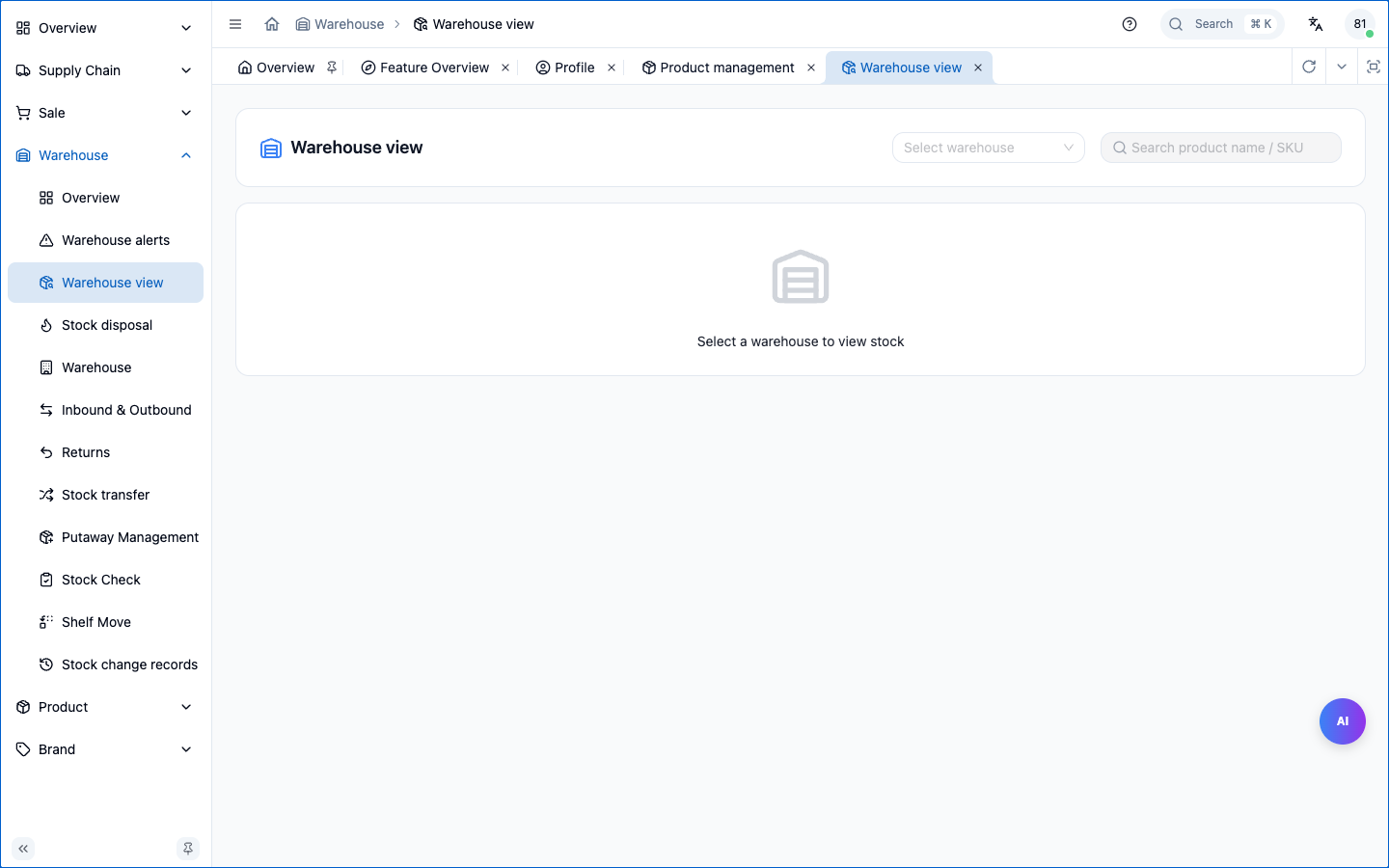
- Warehouse → Warehouse view: stock distribution by SKU / warehouse / shelf (five dims: SKU×warehouse×expiry×order×shelf).
- Product detail also shows the SKU's overall stock & availability.
Chapter Summary
- Product's smallest unit is SKU; build category, brand, brand category first, then SKU.
- New SKU key fields: SKU code, brand, spec name (multi-lang), origin, customs code, barcode, volume (m³, accurate), has_tax, default supplier.
- Three prices: purchase (on order), sale (product detail Price drawer), discount (product detail Discount drawer).
- Unlist/delete are recoverable; delete goes to recycle bin.
- Stock distribution queryable by five dims in Warehouse view.
Next: Supply Chain (Purchasing).