Chapter 10 Warehouse
The warehouse is where stock physically flows: in (stock-in), out (stock-out), move (transfer / shelf move), count, destroy. This chapter covers all warehouse operations.
Entry: left menu Warehouse (Function overview / Alerts / View / Destroy / Warehouse mgmt / In-Out / Return / Transfer / Putaway / Count / Shelf move / Stock log). Function overview: warehouse home cards showing each warehouse's in-stock total, today's in/out qty, alert count; click a card to jump to the corresponding list.
The panorama below: all stock-in increases stock, stock-out/destruction decreases it, transfer/shelf-move only adjust distribution.
st=>start: Stock (5 dims: SKU x warehouse x expiry x order x shelf)
p=>parallel: Three kinds of stock actions
in=>inputoutput: Increase: purchase-in(0) / return-in(1) / transfer-in(2)
out=>inputoutput: Decrease: sale-out(3, release) / transfer-out(4) / destruction(5)
mv=>subroutine: Redistribute: cross-warehouse transfer / shelf move (total unchanged)
e=>end: Stock change log (fully traceable)
st->p
p(path1, bottom)->in->e
p(path2, right)->out->e
p(path3, left)->mv->e
10.1 Warehouse Profiles & Storage-fee Params
- Warehouse → Warehouse mgmt → New warehouse: fill name, code (warehouse_code), region/address, remarks; save to create one "warehouse" dimension in the five-dim stock model.
- Warehouse → Warehouse mgmt → Edit existing warehouse: change name, code, address, or enable/disable.
- Storage-fee params: maintain billing rules per warehouse (e.g., by volume / by day), for subsequent cost calculation.
Warehouse is one of the five stock dims (see 2.5); have a warehouse before creating SKUs. The system already has multiple warehouses; confirm whether a new one is needed, avoid dimension bloat. Disabling a warehouse: if it still has in-stock items, the system blocks disabling — must transfer stock out first.
10.2 Purchase Stock-in
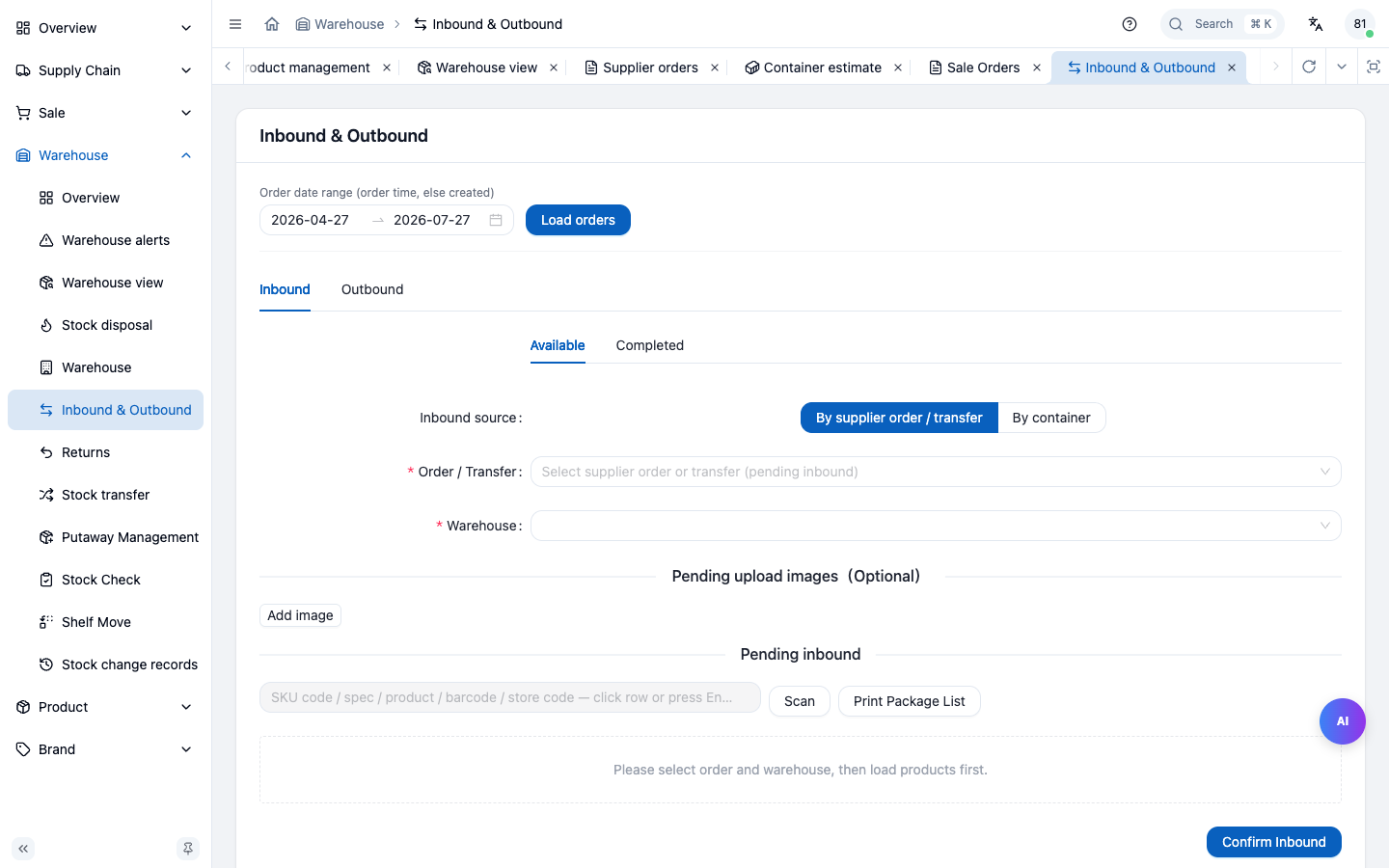
- Warehouse → In-Out → Purchase stock-in.
- In the order-picker popup, filter by supplier / order no. to find the pending supply-chain order; select it and the system brings out the to-stock lines.
- Per line enter qty, shelf position, expiry; supports barcode scanning to auto-fill SKU and reduce manual entry (see 10.11).
- Can stock in in batches: same order submitted multiple times, each time only part of the qty; only when fully stocked does the order advance to "Stocked in (8)".
- Verify and click Submit → creates a supply stock-in record (type 0).
- After submission, can Print stock-in slip (products, batch, shelf position) for records.
Expiry drives near-expiry / expired alerts (see 10.10). Shelf decides where later stock-out picks from. When adjusting batch qty, don't exceed pending qty — overages are blocked.
Remaining quantities use the complete receiving history for the order, grouped by SKU across warehouses. If two lines order 0.50 and 1.00 cases of the same SKU and 1.00 case has arrived, 0.50 case remains. The received total is deducted once. A history containing more than 100 records is included in full; an incomplete or failed history cannot enable receiving. Decimal case quantities are retained. Saved plan quantities stay attached to their snapshot even if the line order changes.
Your connected agent can read the same source order and complete receiving history before proposing the next step. Discover the IO list operation through MCP and set return_all_matching: true with a positive order_id and type: 0. This reads records permitted by the account. Preview imported orders and opening stock through the Agent migration guide before writing them.
10.3 Sales Stock-out
- Warehouse → In-Out → Sale stock-out.
- Pick the sale order (approved, stock frozen); system brings out the to-ship lines.
- Ship from the assigned batch / shelf, enter qty per line; supports barcode scanning.
- Click Submit → creates a sale stock-out record (WarehouseIO type 1); partial dispatch keeps the order pending and complete dispatch advances it to "Stocked out (4)"; occupation released, physical stock drops.
- Can print stock-out slip.
Dispatch remaining quantities also include the complete order history across warehouses. Use return_all_matching: true, the sales order_id and type: 1 when reading this history through MCP.
Stock-out is constrained by available stock; after shipping, physical drops, occupation released. If a SKU's available stock is insufficient, the system warns — need to replenish or adjust first.
10.4 Sales Return-to-stock
- Warehouse → Return → Sale return stock-in.
- Pick a Returning order; the system loads its items. For linked sales, select the actual dispatch source before receiving.
- Specify the warehouse and shelf, then enter quantities. Linked returns cannot exceed actual dispatch minus prior returns. Submission creates a return stock movement (type 1). The order becomes "Stocked back (1)" when all items are received; partial receipts remain Returning. Received items and sources retain their original records, and retrying receipt confirmation does not add stock.
- Can print return stock-in slip.
After return-to-stock, sale side confirms price, finance refunds (see 8.6).
10.5 Putaway Management
Use Putaway management to place or partially move a received batch within its warehouse:
- Choose a purchase order, a sale return, or the available-zone entry, then inspect the source stock rows. Purchase entry checks the stock’s purchase parent. Return entry shows batches linked to that return’s actual receipt facts; an empty return does not expose other stock. Available-zone entry lists available-zone shelves, excluding unavailable-zone stock.
- Each row shows physical, reserved, locked and movable quantities. Movable = physical − reserved − locked, with a minimum of zero.
- Enter a target shelf, quantity and expiry for a row. Barcode scanning helps select products and fill shelves. The quantity cannot exceed the source's current movable stock; sales reservations and locked units stay there.
- Review the exact source batch and destination, then confirm putaway. Confirmation is protected from repeat clicks while pending; changing entries is disabled until it finishes. At least the shelf or expiry must change.
Putaway preserves total warehouse physical stock. A partial shelf split uses the same free-quantity rule. If the destination batch already exists, goods and freight unit costs are weighted separately by physical quantity to six decimals; an unrecorded cost stays unknown and a recorded zero stays zero. Omitting expiry in the API preserves the source expiry; explicitly sending null clears it. The page sends the expiry you reviewed, including a cleared value.
Pending-destruction, manually-expired and pre-stock flags stay with the source quantity. Putaway, splitting and whole-row shelf relocation reject merges into positive batches with different flags; choose another shelf. An empty target adopts the source flags.
A successful putaway shows an operation reference. Use the row’s history link or the success message to read this SKU’s latest 20 putaway records in the warehouse: operator, time, source and target batch/shelf, and physical quantities before and after. Stock without a purchase parent also has an operation record. If the request result is unclear, inspect these records and stock before taking another action. Moving to a different batch does not create another receipt; continue through an applicable inventory entry.
Whole-row shelf relocation is a separate inventory action: it can move commitments with the batch. Putaway and splitting move only the free portion. For a sample, see the interactive available-stock guide.
10.6 Transfer (cross-warehouse) & Shelf move (within warehouse)
- Transfer (cross-warehouse): Warehouse → Transfer → pick source warehouse SKU/batch → enter target warehouse and quantity → create a pending-dispatch document (status 0, no stock change yet). Source dispatch records a type 4 movement and sets status 1, pending receipt. Target receipt records a type 2 movement and completes the transfer (status 2).
- Shelf move (within warehouse): Warehouse → Shelf move → pick a batch within the same warehouse → change target shelf position → submit. Only changes shelf dim, not warehouse or total qty.
Dispatch and receipt are recorded separately. Between them, the goods have left source stock and have not entered target stock. Verify the target warehouse and quantity before creating the transfer.
The source shelf in transfer details has three possible bases: current source shelf before dispatch; shelf recorded at departure after dispatch or completion; or unknown when historical evidence is missing or contradictory. A later shelf move cannot replace the recorded departure location. Document SKU names, codes and units use their saved snapshots when available.
Dispatch records the batch's unit purchase cost, unit freight cost, expiry and supply order. Receipt carries that departure snapshot into the target warehouse. Later changes to the source warehouse's remaining stock, including cost changes, expiry changes or shelf merges, do not replace it. Unit costs use the SKU unit and retain six decimal places. A recorded zero stays zero; an unrecorded historical cost stays unknown rather than being filled from current stock.
When transfer receipt or a shelf move merges into an existing batch, its live unit purchase and freight costs are weighted by physical quantity and rounded to six decimal places. Movement snapshots keep the cost of that movement. For example, 0.75 cases at 20 plus 0.50 cases at 12.34 gives 1.25 cases at 16.936. If a nonzero participating quantity has an unrecorded cost, the combined cost stays unknown. Empty stock does not contribute weight, and a missing cost is not treated as free goods.
Receipt checks the actual departure, products, quantities and source batches before adding stock. Missing or inconsistent evidence stops receipt until the original documents are checked. A shelf merge retargets transfer plans that have not departed; departed or completed plans retain their original source associations. Reading transfer cost snapshots follows the existing inventory cost permission, while warehouse members can still read quantities and shelves.
Dispatch also freezes pre-stock and stock tags: normal, pending destruction or manually marked expired. Receipt preserves these recorded flags even if the remaining source batch changes later. An occupied or locked target batch with different flags cannot merge; choose another receiving shelf. An empty, unlocked target adopts the incoming flags. A historical departure with unrecorded flags requires reconciliation before receipt. Transfer details distinguish current source flags before dispatch, recorded departure flags afterward, and unknown historical status.
For a historical transfer awaiting receipt, a member with transfer permission can open transfer details and choose Verify historical status on a row with missing flags. Check the original dispatch documents, explicitly select the verified putaway status and stock tag, and enter the evidence. Already recorded fields are preserved. Confirmation creates an operation record with the verifier, reason and before/after values without changing quantities or costs. Receipt remains blocked until every departure row has valid flags. Missing or conflicting departure references require the original records to be checked first.
To receive a dispatched transfer, use Warehouse → In/Out → Inbound and select the transfer. The actual departure quantity and expiry are fixed; choose the receiving shelf for each line. A blank shelf means no shelf is assigned. If the planned shelf conflicts, select an empty shelf and confirm receipt. The plan and original dispatch remain intact; completed transfer details show the planned and actual receiving shelves separately. Ordinary inbound/outbound permission is required; return-only permission does not authorize a transfer receipt.
After a timeout, the page reads the latest transfer state without automatically repeating the receipt. Check the movement records before acting again. An image upload failure does not undo stock receipt; use the receipt record to review attachments.
Try the shipment snapshot example: dispatch 0.50 cases, change the remaining source status, then compare receipt into an existing or empty shelf.
10.7 Cycle Count (real-time)
The system does real-time counting — it produces no standalone "count doc" and does not directly change total warehouse stock. While counting you do three kinds of operations on stock:
st=>start: Cycle count -> load stock
a=>parallel: Three count operations
b=>operation: Move shelf (A -> B position adjust)
c=>operation: Split (one batch into two)
d=>operation: Mark destroy (formal write-off later)
e=>end: Real-time write to stock movement log
st->a
a(path1, right)->b->e
a(path2, bottom)->c->e
a(path3, left)->d->e
Counting only adjusts position / split / mark — it does not change total stock. Discrepancies (over/short) must be corrected with a proper document.
| Operation | Meaning | Entry |
|---|---|---|
| Move shelf | Move a stock batch from shelf A to shelf B (within-warehouse position adjust) | Count list row "Move shelf" |
| Split | Split one stock batch into two by quantity (for separate shelves / batches) | Row "Split", enter split qty |
| Mark destroy / Unmark | Mark a batch for destruction (then go through formal stock destruction to write off) | Row "Mark destroy" / "Unmark" |
- Warehouse → Cycle count → Load count (filter current stock by warehouse / SKU / shelf).
- Execute above operations per line; each action writes to stock log in real time.
- Marked-for-destroy batches: later go to "Stock destruction" for formal write-off.
Important: counting only adjusts position / split / mark — it does not change total stock quantity. If a physical count finds a discrepancy (over/short), correct the total with a proper document: overage via purchase stock-in (no-order in), short via sale stock-out or stock destruction. Don't expect counting to flatten the numbers directly.
10.8 Stock Destruction
- Warehouse → Stock destruction → Load batches pending destruction (including count-marked batches).
- Check rows to destroy, can select all; enter destroy qty, reason (expired / damaged / unsellable).
- Click Submit → creates a destruction record (type 5); stock decreases accordingly.
Destruction is an irreversible stock decrease; be cautious; reason field recommended for traceability.
10.9 Warehouse View & Stock Movement Log
- Warehouse view: stock distribution by SKU / warehouse / shelf / expiry (five dims: SKU×warehouse×expiry×supply order×shelf); see physical / occupied / available and filter the result. Excel summary exports for purchase and sales orders are available in their respective order lists.
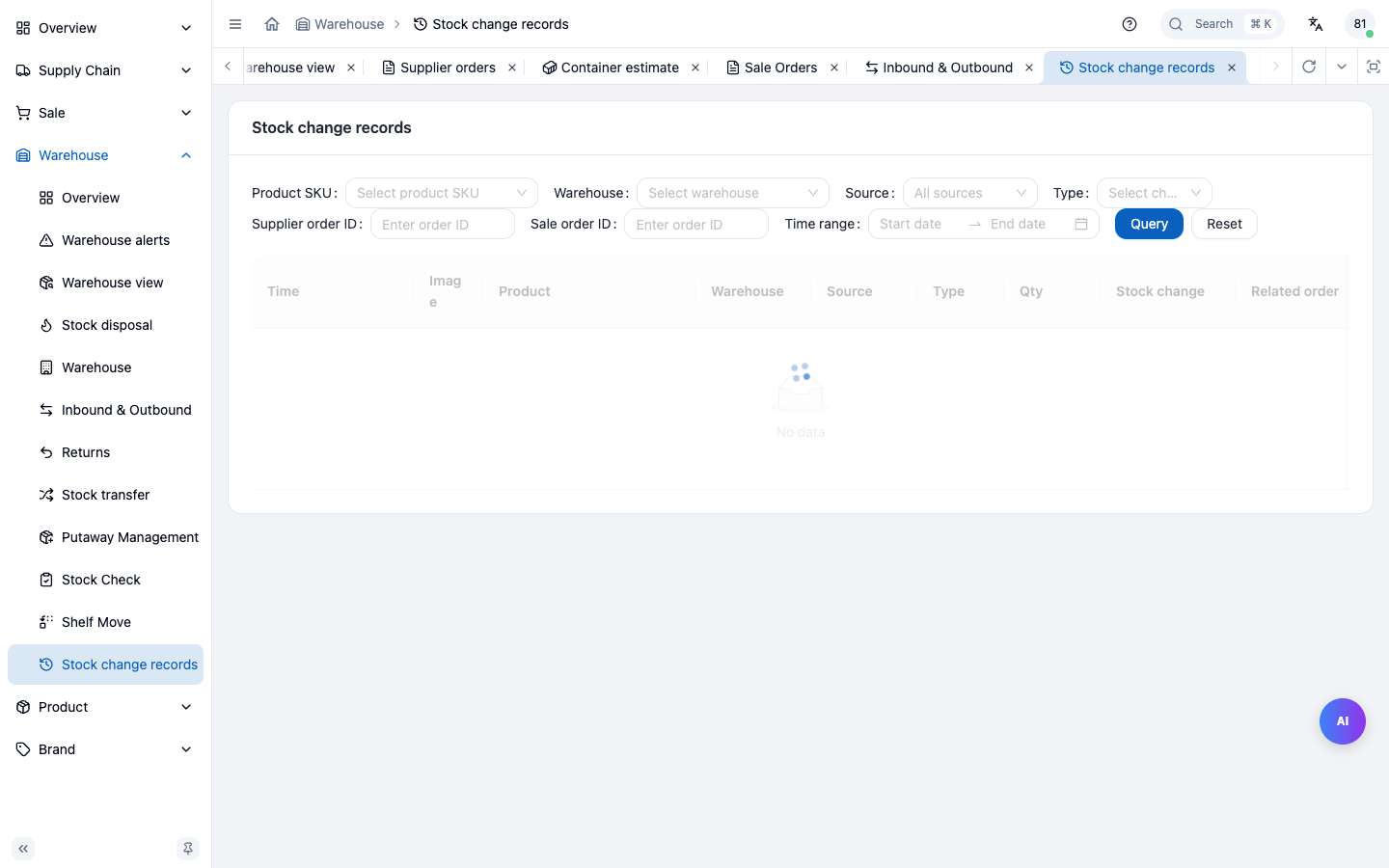
- Stock movement log: the ledger of every stock increase/decrease, recording pre/post stock, type, qty, linked document and time. Filter by SKU, warehouse, stock batch, source, type, document or business date range. Each page shows its own matching rows and the server’s full filtered count. Return and transfer source links open that document directly, independently of the list’s date filter and page, subject to account permissions. Failed or inaccessible details offer retry and cannot be saved, confirmed or printed. Quantities use the SKU unit, including partial cases, and represent physical movements rather than sales reservations.
Read-only API Keys and connected agents can query POST /product/product-stock-records/list with page and page_size (1–100). Results sort by time and then ID, both newest first. Date-only bounds use Toronto business dates and include the entire end day; timestamp offsets are converted to Toronto. Source values are supplier_inbound, sale_outbound, sale_return or transfer. Invalid filters are rejected. This is ordinary pagination, not a frozen snapshot: if inventory changes during a multi-page read, refresh and recheck before treating it as a complete reconciliation.
The recent-restock filter follows SKUs with a stock batch changing from zero to positive in the last 30 days, up to the current business time. It excludes hidden SKUs and future-dated movements. It does not assert that every warehouse or the SKU’s total stock was previously zero. The shopper loads all pages; unavailable or inconsistent results show retry rather than a partial or empty product list.
10.10 Warehouse Alerts
- Warehouse → Alerts.
- System monitors three anomalies (thresholds configurable in alert settings):
- Near-expiry: stock approaching expiry (by days threshold).
- Stockout: SKU whose available stock is below threshold.
- Overstock: long-untouched stock tying up capital (by days threshold).
- Act on alerts: near-expiry → promo / destroy; stockout → arrange purchase; overstock → clear or transfer.
Set thresholds during initial setup to avoid missing alerts.
10.11 Barcode Scanning
SKUs can carry barcodes (upc / barcodes). Scanning during in/out / putaway quickly identifies the SKU, reducing manual-entry errors:
- Maintain barcodes in product detail (see 6.3); scanner/camera recognizes and auto-fills SKU.
- In stock-in / stock-out / putaway lists, click "Scan" per row to invoke scanner; auto-fills SKU / shelf position after recognition.
- Scan shelf barcode to directly bind placement.
Barcodes maintained in product detail (see 6.3); scanner/camera auto-brings the SKU after recognition.
Chapter Summary
- Stock-in three types: supply in (0) / return in (1) / transfer in (2); stock-out two types: sale out (3) / transfer out (4); plus destruction (5).
- Purchase stock-in picks supply order, can be partial, supports scanning & printing; sale stock-out picks sale order, ships from batch/shelf.
- Putaway completes arrival-to-shelf placement; transfer cross-warehouse, shelf move within warehouse; count calibrates book vs physical (move shelf / split / mark destroy); destruction handles unusable stock (supports select all).
- Stock movement log holds pre/post stock — the only trace entry; alerts cover near-expiry/stockout/overstock (thresholds configurable); barcode scanning supported throughout.
Next: Finance.