Chapter 9 Merchant Purchase Portal (for downstream merchants)
Downstream merchants don't use the back-office; they use the Merchant Purchase Portal to browse, order, and track. This chapter covers the merchant side and how operations handles a merchant-placed order.
Merchants and back-office operators share one account system; the difference is the role: a merchant account sees only "Merchant Purchase" menus after login (Browse / Product detail / Cart / My orders).
The full merchant shopping flow — from login to order creation:
st=>start: Merchant login
a=>operation: Browse products (search / category / brand wall / stock filter)
b=>operation: Add to pick list (floating panel, batch-adjust qty)
c=>operation: Confirm add to cart
d=>condition: Has custom-price permission?
e1=>operation: Can set custom price (click price to edit)
e2=>operation: Use default sale price
f=>operation: Cart checkout (verify qty / address / contact)
g=>end: Generate sale order -> operations handles
st->a->b->c->d
d(yes)->e1->f->g
d(no)->e2->f
9.1 Merchant Login & Browse
- Merchant logs in at https://dash.wholety.com with the assigned account, enters the portal interface.
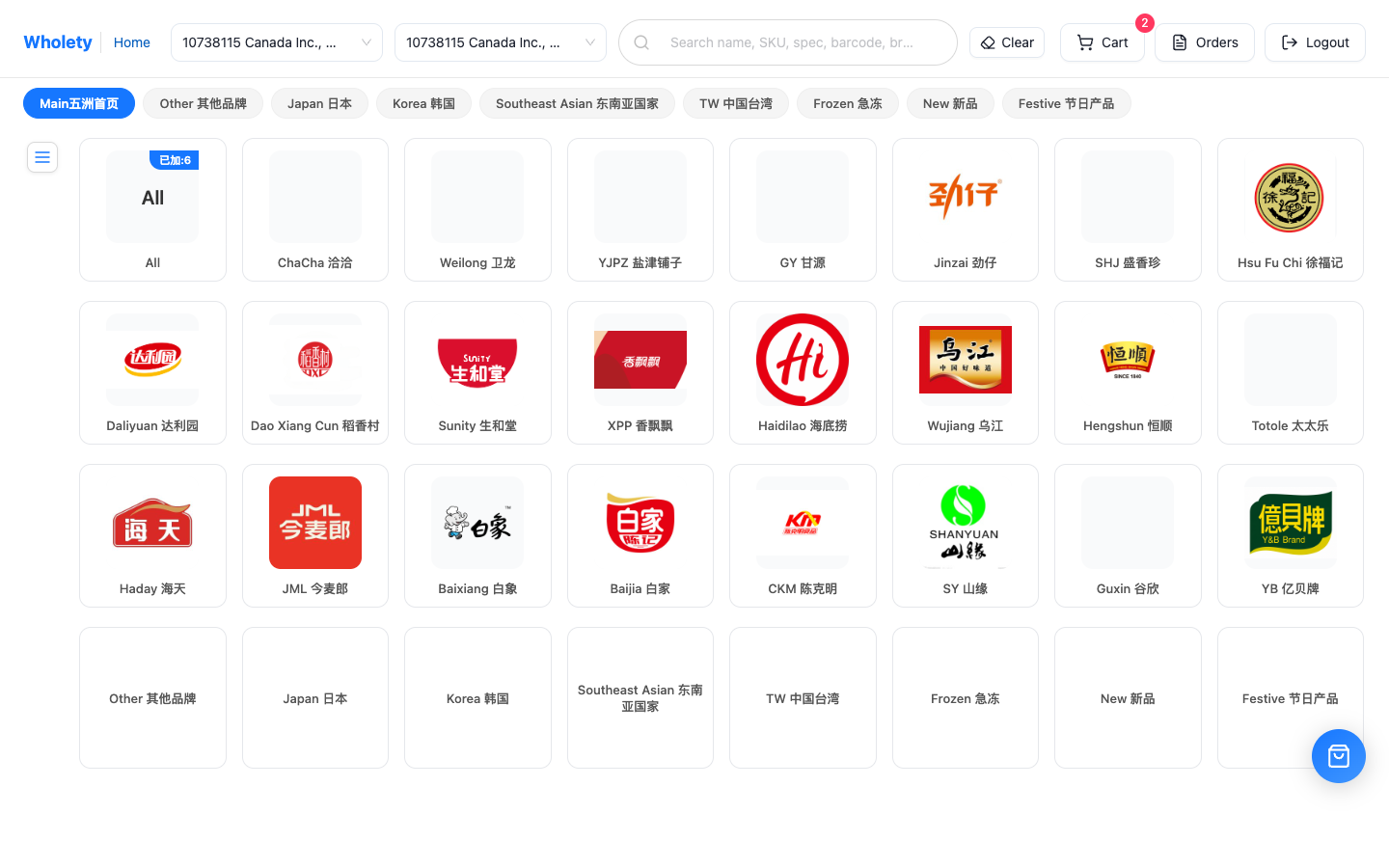
- Top navigation (shared across all portal pages):
- Brand name / Back to browse; Search box to search products directly;
- Merchant switch dropdown (choose the buyer when the account can access several merchants); select the delivery address in the cart checkout popup;
- Cart, Orders (my sale orders), Logout;
- Operations accounts with price permissions also see a Clear custom price entry (see 9.2.1).
- Browse products page — filtering & browsing:
- Left panel "Only show in-stock" toggle — only see items that can ship immediately;
- Hot focus filters: Best sell / Trending / New / Restock;
- Category tree multi-select filter; Brand wall — click a brand to see its products, "Back to brand wall" to return;
- Product card: switch SKU specs, click "Warehouse details" to see stock distribution per warehouse, adjust qty with −/+ then "Add to pick list".
- Pick list floating window (bottom right): batch-adjust qty across products, remove wrong picks, then "Confirm add to cart" to add all at once.
Product cards and the pick list accept two decimal places in the SKU's stock unit, such as 0.25 or 1.75 cases. The minimum is 0.01, limited by currently visible stock; an in-stock SKU with less than one case defaults to the remaining quantity. Repeated picks of the same SKU accumulate. Review the list before confirming it into the cart.
The pick list is a staging area before the cart — batch-pick everything first then cart it all at once, faster than adding one by one.
9.2 Product Detail & Price Display Rules
- Click a product to enter Product detail: spec, reference price, stock and image. An explicit zero price is shown as zero; a missing quote remains unknown.
- Enter quantities with two decimal places in the SKU's stock unit, such as 0.25 cases, or use −10 / −1 / +1 / +10. The minimum is 0.01, limited by visible stock. You can add an ordinary note with catalog pricing.
- Accounts with Sales order product price and discount write permission can select Price / Discount / Free gift. Adding without a deliberate price selection retains catalog pricing; selecting a quote saves a custom price. An authorized operator can order for the buyer selected in the portal without being bound to that buyer's account.
- Price display rules:
- Shown by this merchant's sale/discount (different merchants may see different prices; see 8.2).
- Merchant cannot see purchase cost (that's a back-office sensitive field).
The detail and its form belong to the current account, member, buyer and product. Switching this scope or leaving the page clears the old detail; a late read cannot restore it. A failed read offers Retry. If an add cannot be confirmed, refresh the cart and check its contents before trying again.
Adding an SKU already in the cart increases its quantity and retains the cart line's saved quote, gift and note. To change those saved values, edit the line in the cart and review it before checkout.
9.2.1 Custom Price & Clearing
Accounts with price permissions (e.g., operations placing orders on behalf) can set a custom price on a product, temporarily overriding that merchant's default sale price (for special quotes, targeted promotions, etc.):
- In the product's price area on Browse list / Cart, click the price to open the custom-price editing layer; set unit price / SKU price / free gift, click "Confirm" to apply; products with custom prices show a marker, click "×" to remove individually.
- Top navigation: click Clear custom price to restore the system-computed default price for this merchant in one click.
Temporary quotes and pick bags are saved in the current browser for each workspace, signed-in member and merchant. Switching members does not adopt the previous member's drafts. Returning to the same merchant during the current login restores saved drafts; returning to Browse reloads quotes edited in Cart. Logging out or clearing local data removes browser drafts. These drafts do not change catalog defaults or become another member's local draft. Use "Clear custom price" to withdraw temporary quotes, or the "×" marker to remove one.
Check the cart after adding: Repeated clicks while an add is pending do not submit it again. Only acknowledged quantities are removed from the pick bag; failed or unacknowledged products and additional quantities picked during the wait remain. After switching members or merchants, or leaving the page, an old reply cannot clear the new bag, close its drawer or change a new operation's pending state. Requests already sent may still complete; return to the original member and check the cart. Browser drafts in the old format without member ownership are not adopted automatically; review and reselect their products and quotes.
9.3 Cart & Submit Order
- Open Cart, verify each line: qty −/+ adjust, Remove (requires confirmation), top Clear all (requires confirmation).
- With price permission: click a line's price to re-edit custom price (unit price / SKU price / free gift), then click the line's Save.
- Empty cart shows a Go browse shortcut; bottom shows total amount in real time.
- Click Generate sale order, confirm delivery address / contact / phone / remarks in the checkout popup, submit.
- After submission, a formal sale order is created (bound to this merchant) and enters operations' handling flow.
Recipient details: The confirmed contact and phone are saved with the order and shown in its details. Later address-book edits do not overwrite them. Contact names allow up to 100 characters; phone numbers allow up to 50, including international prefixes and extensions. A new shipment defaults to this order's address and recipient. When using a different address or explicitly clearing it, enter the corresponding recipient. Saving delivery details does not dispatch stock or record a payment.
Check the amount: The default price is resolved for the selected buyer at checkout from eligible general and dedicated quotes. Saved manual prices are retained. A missing quote remains unknown and blocks checkout; an explicit zero price is valid. Unit prices and whole-line discounts are saved separately. Gifts become separate zero-priced lines. Two items at CAD 2.01 with a CAD 0.01 whole-line discount total CAD 4.01; adding a 0.50-item gift does not change this net goods amount.
Price authority: Changing a custom price, whole-line discount or gift requires Sales order product price and discount write (sale_order_price_write). Browsing access alone permits catalog ordering, quantities and normal notes. The API checks this permission too, including saved overrides at checkout after a role changes. Clear old overrides or ask an authorized operator to review them if checkout is refused. A quantity-only API update preserves omitted price, discount and remark fields; explicit null clears them.
Submit once, then check the result: Concurrent submissions of the same saved cart produce one sales draft. Additions made during checkout remain in the cart for a later order. Order creation, cart consumption and cache changes succeed or roll back together. If the connection drops or the submission result is unconfirmed, open My orders and refresh the cart before trying again. The portal opens order review and prevents immediate repeat submission; agents should perform the same reads before deciding what to do next.
9.3.1 A failed save, a merchant switch or an unconfirmed result
| What happened | What to do next |
|---|---|
| The quote save or cart verification failed before submission | Checkout stops and keeps the form open. Some line changes may already be saved; refresh the cart, review quantities and prices, then retry. |
| You switched merchant or signed-in member, or left the cart while saving or submitting | The earlier operation stops its remaining steps. A late response cannot clear the new merchant’s form or redirect the new session. An already sent request can still finish on the server; return to the original merchant to check orders. |
| The connection dropped after the order was submitted | Check sales orders first, then refresh the cart. A missing response does not prove that no order was created; avoid immediately submitting again. |
Submission uses the line quotes, delivery address and remark confirmed when you click submit. Quotes are saved one line at a time: a preparation failure does not roll back earlier saved changes, and preparing a quote does not create an order. An agent using MCP should also distinguish a failed quote save from an unconfirmed order result, read the current records and then decide its next action.
Merchant cart checkout = a sale-order draft in the back-office; operations select warehouse stock batches and save products to validate and reserve stock, then follow approval / stock-out / settlement (Chapter 8). Portal checkout does not assign warehouse batches by itself.
9.4 View Own Orders & Status
- Merchant → My orders to view the selected buyer's orders. Use the page controls at the bottom, with 20, 50 or 100 orders per page. Changing buyer or login member starts again on page one.
- Order state advances with operations' handling: Pending → Ordered → Stocked out → Delivered → Settled.
- Open a card to view its products, saved recipient and remarks. A link returned after checkout can also open the corresponding order directly.
- If the list cannot be read, select Retry to reload the current page. After changing buyer or member, or leaving and returning, the page reads the current scope; a late old result cannot replace the new page.
Order status reflects operational progress. Operations checks actual receipts against payment records.
9.5 How Operations Handles a Merchant-placed Order
After a merchant checks out, operations sees this new order in Sale → Sale order mgmt (the merchant is the buyer). Operations proceeds normally:
- Review/approve order → confirm order (freeze stock).
- Warehouse stocks out & ships.
- Sale settlement, generate analysis.
The portal is only an "order entry". Once the order exists, everything runs in the back-office by the standard sales flow. Operations doesn't act inside the portal.
Chapter Summary
- Merchant & back-office share one account system, distinguished by role; merchant sees only "Merchant Purchase".
- Merchant flow: browse → product detail (see sale price/tax) → pick list → cart → checkout → formal sale order → track in "My orders".
- Merchant cannot see purchase cost; price by own merchant dimension, tax by own region rate.
- Custom price per product/session; "Clear custom price" restores defaults in one click.
- Merchant checkout creates a back-office sale order; operations handles it by the standard flow.
Next: Warehouse.